WordPress Malware Removal: The Complete 2026 Guide

WordPress Malware Removal: The Complete 2026 Guide

Most guides on this topic start by explaining what malware is. You already know. Something is wrong with your site and you need it gone.

So let’s start with the useful part instead: figuring out which infection you have. Because “WordPress malware” isn’t one thing, and the cleanup for a redirect hack looks different from the cleanup for SEO spam.

Find your symptom below, then read the section that matches.

Find Your Symptom


What you’re seeingWhat it probably isWhere to go next
Japanese characters in your Google listingsJapanese SEO spamJapanese keyword hack guide
Viagra, Cialis, or pharmacy terms in search resultsPharma hackPharma hack guide
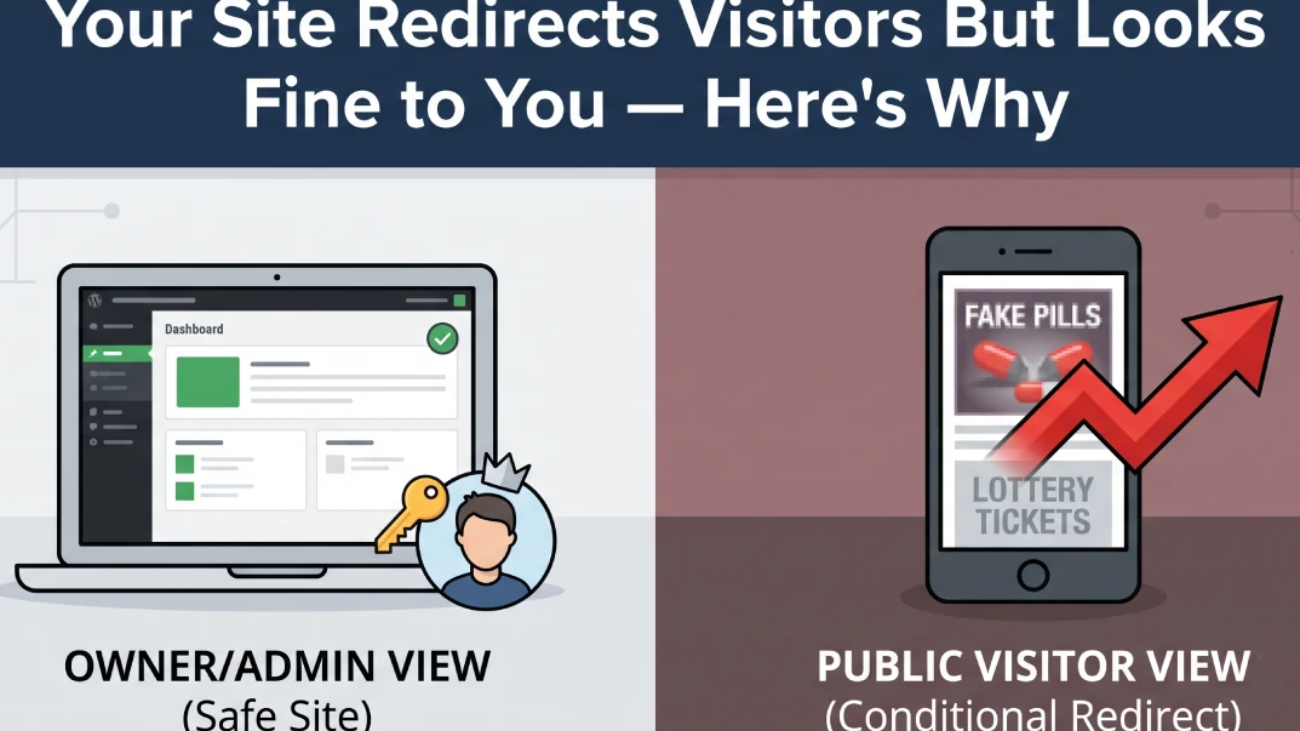
Visitors get redirected but your site looks fineConditional redirect malwareRedirect hack guide
Google flags you but every scan comes back cleanCloaked or server-level infectionWhy scans say clean
Admin accounts you didn’t createBackdoorKeep reading
Locked out of wp-adminCredential compromiseKeep reading
Host suspended your accountActive infection, usually outbound spamKeep reading
Site suddenly slow, server resources spikingCryptominer or spam relayKeep reading
Your emails going to spam or bouncingYour server is on a blacklistKeep reading
Nothing visible, but something feels offPossibly nothing. Read the detection section.Keep reading

What Is WordPress Malware?

WordPress malware is malicious code injected into your site’s files or database, usually through a vulnerable plugin or theme. It doesn’t announce itself. Most infections are designed to keep your site running normally so the attacker can use it for as long as possible.

That last point is the one people find hardest to accept. Attackers usually don’t want to break your site. A broken site gets fixed. A site that looks fine but quietly serves spam, sends phishing emails, or mines cryptocurrency can stay compromised for months.

Most WordPress hacks go undetected for weeks for exactly this reason.

The scale, briefly

Security researchers recorded 11,334 new vulnerabilities across the WordPress ecosystem in 2025 — a 42% jump over the previous year. Roughly 13,000 WordPress sites are compromised every day. WordPress accounts for over 90% of all infected CMS websites that cleanup firms handle.

But here’s the number that should shape how you think about this: 91% of those vulnerabilities were in plugins. WordPress core itself had six.

The software everyone worries about updating is the safest part of the stack. The parts people install and forget are where the problem lives. (The exception was the wp2shell core vulnerability patched in July 2026 — genuinely rare, and notable precisely because core flaws almost never happen at that severity.)

How to Tell If Your WordPress Site Is Infected

Run these checks in order. Each takes a couple of minutes.

1. Search your own site in Google. Type site:yourdomain.com and page through. Foreign-language pages, pharmacy listings, casino spam, or URLs you never created are conclusive evidence.

2. Compare your indexed page count against reality. In Search Console → Indexing → Pages. A 40-page site showing 4,000 indexed URLs has 3,960 pages you didn’t make.

3. Check Search Console Security Issues. Useful when it fires — but be careful with a clean result. Plenty of SEO spam infections never trigger a warning at all.

4. Visit your site logged out, from a phone, via a Google search. Not by typing the address while logged in on desktop. Conditional malware skips that exact profile on purpose.

5. Check your users. Users → All Users, filtered to Administrator. Look at registration dates. Anything you didn’t create is a backdoor.

6. Check Search Console property owners. Settings → Users and permissions. Attackers add themselves as verified owners to monitor their spam and keep access after cleanup. Almost nobody looks here.

7. Look for files that shouldn’t exist. PHP files in wp-content/uploads/. Unfamiliar plugin folders. Anything in mu-plugins you didn’t put there. Sort by modification date — files changed around the time trouble started are your shortlist.

8. Check whether your domain is blacklisted. Run it through MXToolbox or a Spamhaus lookup. If your site is being used as a spam relay, your legitimate emails will start bouncing — and that’s often the first symptom a business actually notices.

9. Read your .htaccess and wp-config.php. Unexpected RewriteRule lines pointing to external domains, or long base64-encoded strings near the top of wp-config.php, are both red flags.

One important warning about scanners

Security plugins are useful. They are not conclusive.

Sucuri documented malware built specifically to defeat Wordfence — and in 14% of infected sites, the malware had tampered with Wordfence’s own files to stay hidden. Meanwhile, infections that live entirely in the database, or on the server outside WordPress, are invisible to file-based scanning by design.

A clean scan means “no known malware found in the places I looked.” It does not mean your site is clean. If your scanner and Google disagree, Google is almost always the one that’s right.

The Main Types of WordPress Malware

SEO spam injection

The most common category by a wide margin. Your site gets used to rank pages for keywords the attacker cares about — pharmaceuticals, counterfeit goods, gambling.

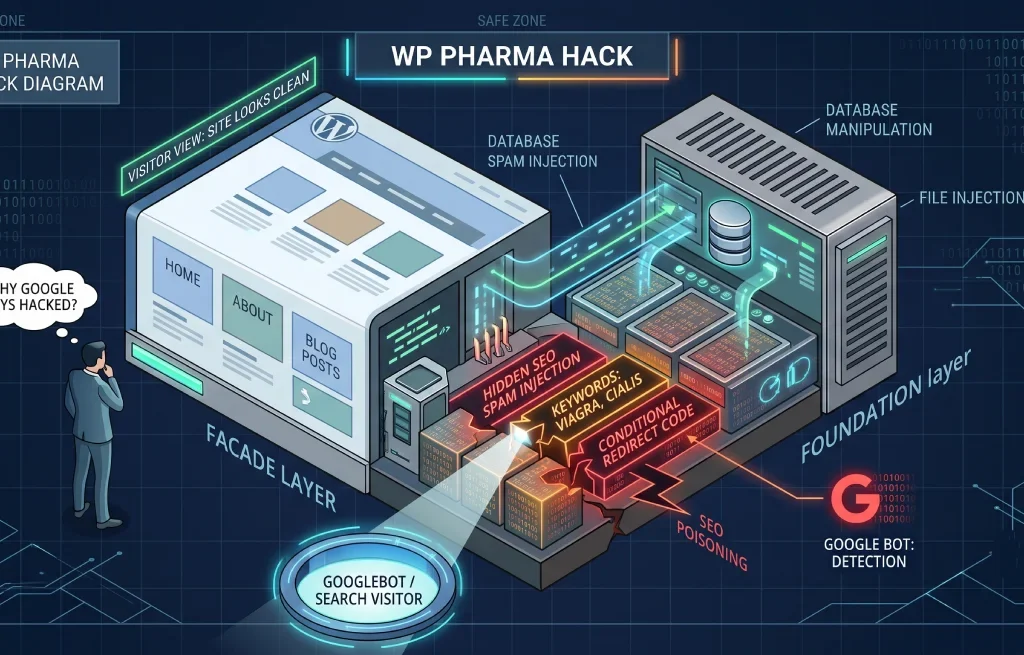
The defining feature is cloaking: the malware serves spam to Googlebot and normal content to you. That’s why site owners insist nothing is wrong while their search listings fill up with junk.

Main variants: Japanese keyword hack, pharma hack, casino spam. Same attack, different merchandise.

Backdoors

The most dangerous type, because a backdoor is what makes an infection survive your cleanup.

Backdoors hide in files with legitimate-sounding names, in obfuscated code that mimics normal WordPress functions, in the database, or in scheduled cron jobs that rewrite deleted files on a timer. Some create hidden admin accounts. Some don’t need to.

If you clean a site and it reinfects within hours, you left a backdoor. If it reinfects within weeks, you probably left the entry point open. Different problems, different fixes.

Malicious redirects

Visitors get sent to spam, phishing, or fake browser-update pages. Modern versions are conditional — they check whether you’re logged in, what device you’re on, and where you came from before deciding whether to fire.

Credit card skimmers

On WooCommerce and other stores, JavaScript injected into the checkout page copies card details as customers type them. The order still completes normally. Nothing looks wrong.

This is the infection with legal consequences attached, and it’s the strongest argument for treating an ecommerce compromise as an incident rather than a chore.

Cryptominers

Your server’s CPU gets used to mine cryptocurrency. Symptoms are performance-based — sudden slowdowns, resource spikes, hosting complaints about CPU usage.

Spam relays and phishing hosts

Your site sends thousands of spam emails, or hosts phishing pages in a subdirectory. Usually discovered when your host suspends the account or your domain lands on an email blacklist.

What’s new in 2026

Two developments worth knowing about.

AI-generated malware. Attackers now use language models to write code that mimics legitimate WordPress patterns — innocuous variable names, conventional structure, nothing that looks obviously wrong. Signature-based scanners rate it as clean because it genuinely looks like normal plugin code.

Database-resident infections. Malware that leaves no file-system trace at all, writing temporary files only during a request and deleting them immediately afterward. A scanner running hourly will essentially never catch it in the act.

Both trends point the same direction: file scanning alone is no longer sufficient, and “the scan was clean” is a weaker signal than it used to be.

How Malware Gets In

Five entry points cover nearly everything.

Outdated plugins and themes. The dominant cause. Around 250 new plugin vulnerabilities are disclosed weekly, and attackers begin scanning for vulnerable installs within hours of disclosure — long before most site owners apply the patch.

Abandoned plugins. Roughly a third of plugins in the WordPress.org repository haven’t been updated in over a year. An abandoned plugin doesn’t stop working; it stops getting fixed. Any vulnerability found after the developer walked away stays open permanently.

Nulled themes and plugins. Cracked premium software from unofficial sources. Whoever removed the license check had full file access and no reason to be nice. Backdoors in nulled software are the norm, not the exception.

Weak or reused credentials. Brute-force attacks against wp-login.php remain constant. Two-factor authentication ends this category entirely.

Shared hosting neighbors. On shared accounts, an infection on one site can spread to others in the same account. Including the test install you forgot about in a subdirectory.

The WordPress Malware Removal Process

This is the general process. Specific infections have specific extra steps — follow the linked guide for your symptom alongside this.

Stage 1: Contain

Take a full backup, files and database, even infected. You need a rollback point and forensic evidence. Label it clearly so nobody restores it by accident later.

Put the site in maintenance mode. Stop serving malware to visitors and stop the damage compounding.

Rotate credentials now, not later. WordPress admins, database, hosting panel, SFTP, and the security salts in wp-config.php. Changing salts forces every session to log out, including the attacker’s.

Remove unauthorized Search Console owners before you start cleaning, or the attacker watches the whole process.

Stage 2: Clean the files

Replace WordPress core. Download fresh from wordpress.org and replace everything except wp-content and wp-config.php. This eliminates any core-file modifications in one move.

Delete and reinstall every plugin and theme from official sources. Delete, then reinstall — don’t try to clean in place. Anything nulled gets removed and replaced with a legitimate copy or dropped entirely.

Hunt for backdoors in the places scanners skip:

  • PHP files anywhere in wp-content/uploads/
  • Unfamiliar files in mu-plugins, which load automatically and never appear in your plugins list
  • Files with a leading dot (.somefile.php), hidden by default in most FTP clients — enable hidden files to see them
  • Core filenames in wrong directories, like a wp-blog-header.php sitting somewhere it doesn’t belong
  • Random-looking filenames in cache folders

Check .htaccess and wp-config.php and reset .htaccess to the WordPress default if anything looks injected.

Stage 3: Clean the database

This is the stage people skip, and it’s why infections come back.

  • wp_options: confirm siteurl and home match your real domain. Look for oversized encoded entries.
  • Scheduled tasks: cron jobs that rewrite files on a timer are the single most common reinfection mechanism. Review and remove anything you don’t recognize.
  • wp_posts and wp_postmeta: spam content and injected links.
  • wp_users: administrator accounts you didn’t create.

A serious warning: bulk DELETE queries based on keyword matching are genuinely dangerous. A slightly wrong query destroys legitimate content permanently, and your only backup is infected. Test on staging first. If that prospect makes you uneasy, that’s the correct instinct — stop here rather than experimenting on a live database.

Stage 4: Clean Google’s index

Your site can be spotless while Google still lists thousands of spam URLs. Google doesn’t know they’re gone until it recrawls them.

  • Return 410 Gone for spam URLs, not 404. Both work; 410 means “permanently gone” and Google acts on it faster.
  • Do not block them in robots.txt. This is the most common mistake in SEO spam recovery and it backfires completely: Google must crawl a URL to see the 410. Block it, and Google never learns the page died, so it stays indexed indefinitely.
  • Don’t redirect spam URLs to your homepage. That transfers spam signals to your best page.
  • Delete fake sitemaps and submit a clean one.
  • Use Search Console → Removals for the worst offenders. This hides URLs within about a day, but it’s temporary — roughly six months. The 410s do the permanent work.
  • Request a review under Security Issues if you were flagged. Explain what was wrong, what you did, and the result.

Stage 5: Harden

Cleaning fixes today. Hardening is what stops next month.

  • Update core, all plugins, all themes
  • Delete every plugin and theme you don’t actively use
  • Two-factor authentication on all admin accounts
  • Limit login attempts
  • File permissions: 644 for files, 755 for directories, 600 for wp-config.php. Never 777.
  • Disable file editing: add define('DISALLOW_FILE_EDIT', true); to wp-config.php
  • Disable PHP execution in the uploads directory
  • Install a firewall with virtual patching, so newly disclosed vulnerabilities are blocked before the developer ships a fix
  • Set up file integrity monitoring so you learn about changes from a monitor rather than a customer

Why Malware Comes Back

Roughly half of SEO spam infections recur within 30 days when prevention isn’t put in place. Reinfection is the normal outcome of an incomplete cleanup, not bad luck.

Four causes, and they need different responses:

What happenedThe tellThe fix
A backdoor survivedFiles reappear within hoursFull backdoor hunt, including cron jobs
The entry point is still openReinfection days or weeks laterFind and remove the vulnerable plugin or theme
Contamination from a neighboring siteCleanups keep failing for no visible reasonClean or remove every site in the hosting account
Nothing came backSearch results look wrong, site is cleanNothing — it’s stale indexing. Check status codes.

That last row matters more than it looks. Stale index entries and genuine reinfection look identical from the outside, and treating one as the other means tearing apart a site that was already fine. Check what status code your server actually returns for a spam URL before concluding anything.

DIY vs. Professional Cleanup

 Doing it yourselfProfessional cleanup
CostFree, plus your time$300–$3,000+
TimeA day minimum, often severalUsually same-day
FilesManageableHandled
DatabaseFrequently skipped, and it’s where reinfection livesStandard
Server-level accessUsually unavailable to youAvailable with host cooperation
Search Console workUsually skipped entirelyStandard
Main riskOne missed backdoor restarts everythingCost
Best whenSmall site, clean backup, comfortable with FTP and phpMyAdminStore or business site, no clean backup, or it’s returned before

The honest dividing line: if you can see the malicious code and the site is simple, do it yourself. If every scan comes back clean while Google insists otherwise, or if it’s already been cleaned once and returned, you’re past what dashboard tools can resolve — and the total cost of a prolonged infection usually exceeds the cleanup quote by a wide margin.

Prevention

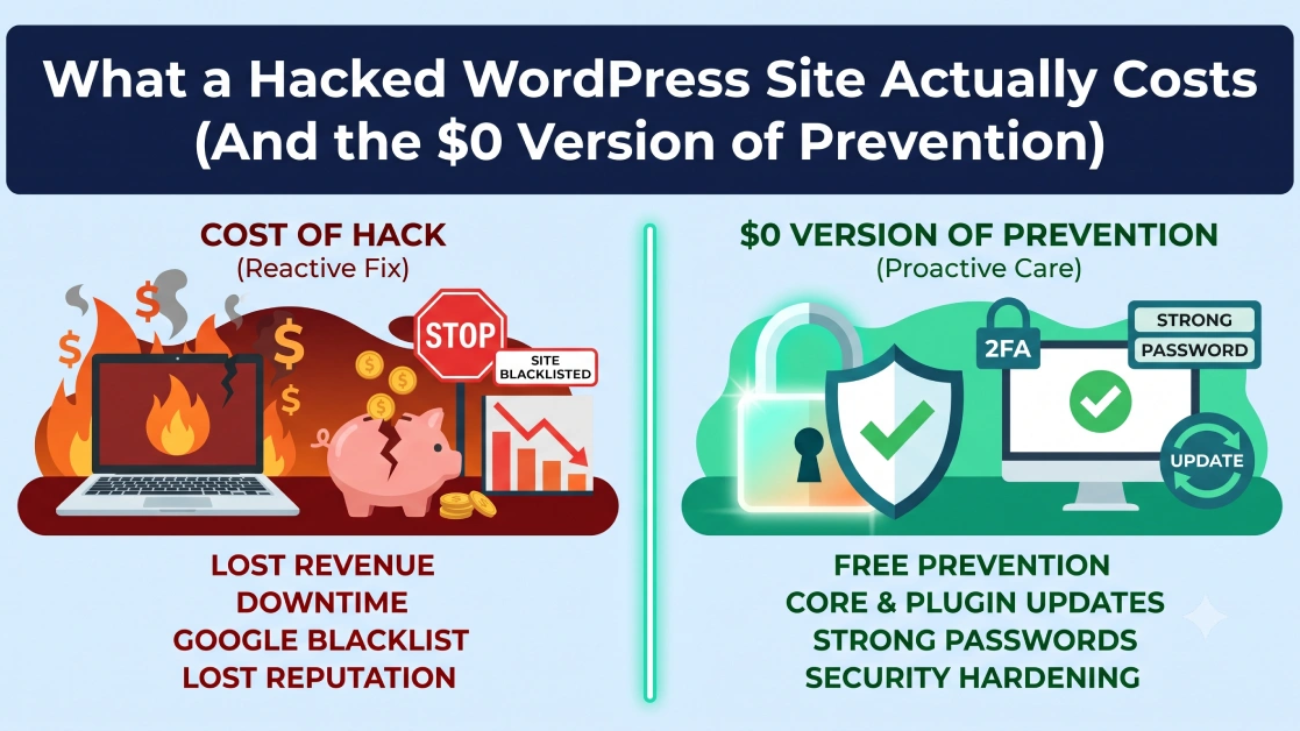
The version that costs nothing:

  • Delete unused plugins and themes. Deactivated is still installed.
  • Check “last updated” dates before installing anything. Over a year is a warning; over two is a no.
  • Remove old WordPress installs in subdirectories.
  • Delete admin accounts belonging to people who no longer work with you.
  • Turn on two-factor authentication.
  • Never install nulled software.
  • Set up Google Search Console with email alerts.
  • Search site:yourdomain.com once a month.
  • Restore a backup somewhere to confirm it actually works.

The version worth paying for: a firewall with virtual patching, quality hosting with site isolation, off-site backups, and monitoring that tells you about changes within hours.

Frequently Asked Questions

Can I remove WordPress malware without a plugin? Yes. Manual removal via FTP and phpMyAdmin is often more thorough, because you’re not limited to what a scanner recognizes. It requires more care, particularly with database work.

Will reinstalling WordPress remove malware? It removes malware in core files only. Infections in wp-content, the database, or the server survive a core reinstall completely.

How long does WordPress malware removal take? A few hours for a simple infection with a clean backup. Several days for a compromise with backdoors across files and database. Index recovery afterward runs 30–90 days.

My scanner says clean but Google says hacked. Who’s right? Google, almost always. The reasons are specific and worth understanding.

Should I just rebuild the site instead? Rarely worth it. You lose SEO history, backlinks, and domain authority—and if the entry point was a plugin you reinstall on the new site, you’ve rebuilt the vulnerability too.

Does my host handle this? Some do; most don’t. Hosts typically detect and suspend rather than clean. Ask before assuming.

Where WebFixOn Fits

We handle WordPress maintenance, security hardening, and malware recovery for businesses in the US, UK, Canada, and Australia.

For an active infection, we work through all five stages — containment, files, database, search index, hardening — rather than removing the visible symptom and hoping. That includes the parts most cleanups skip: cron jobs, mu-plugins, unauthorized Search Console owners, and the entry point that let it in.

For sites that are currently fine, ongoing maintenance is the cheap version of all this: updates applied and verified, abandoned plugins caught during routine checks, backups tested rather than assumed, and new vulnerabilities handled in hours.

A cleanup that misses one backdoor isn’t a cleanup. It’s a delay.
WordPress Pharma Hack: Why Google Thinks Your Site Sells Viagra

WordPress Pharma Hack: Why Google Thinks Your Site Sells Viagra

WordPress Pharma Hack: Why Google Thinks Your Site Sells Viagra

Someone tells you they searched your business name and Google offered them cheap Cialis.

You check. Your site is fine. Homepage loads, pages are normal, nothing’s changed. You log into WordPress and everything’s where you left it. No warnings, no weird posts, nothing.

They must be confused. Or their browser has something. Or they typed it wrong.

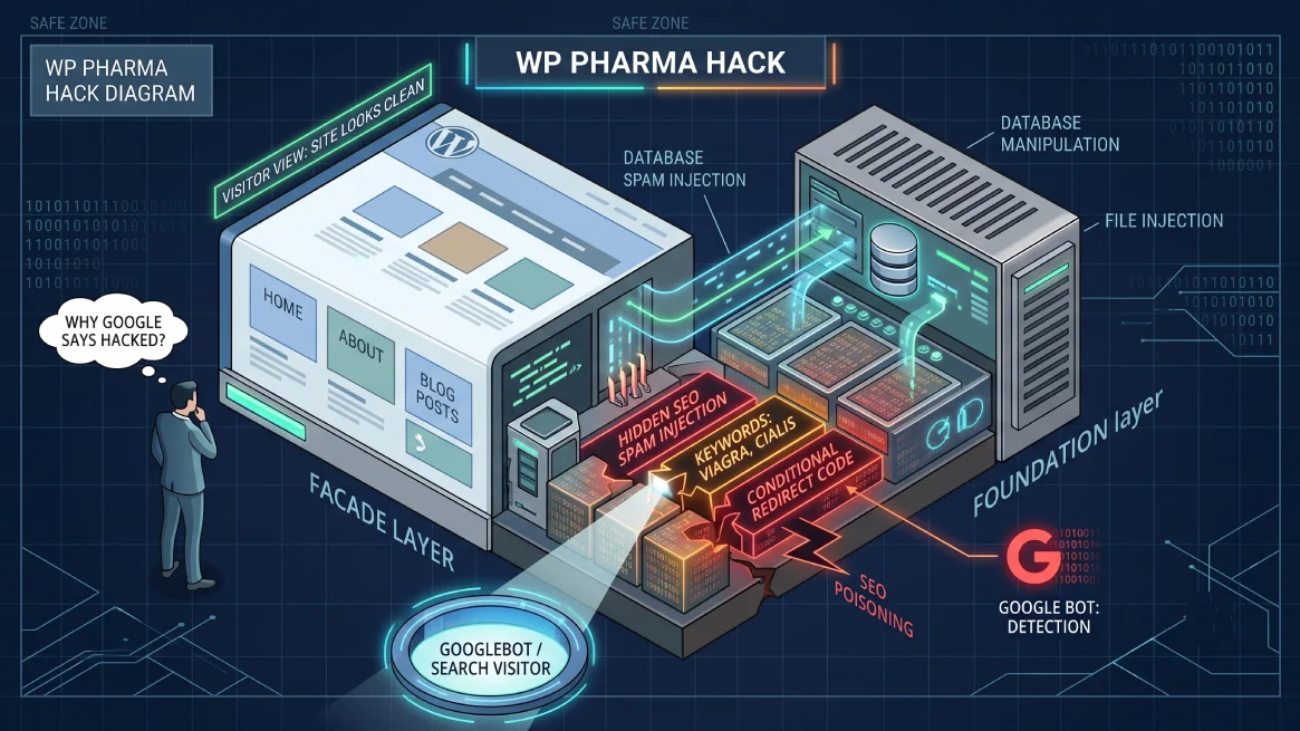
They didn’t. Your site is serving pharmaceutical spam to Google right now, and the only reason you can’t see it is that the malware checked who you were and decided you weren’t the audience.

What Is the WordPress Pharma Hack?

The WordPress pharma hack is an SEO spam infection that injects pharmaceutical content — Viagra, Cialis, Xanax, and similar — into your site’s search listings while showing normal pages to human visitors. It uses cloaking to serve one version of your site to Googlebot and a completely different version to you.

You’ll also see it called the Google Viagra hack or the WordPress Viagra hack. Same infection, different name depending on which drug keywords the attacker chose.

The goal isn’t to break your site or steal your data. It’s to borrow your domain’s search authority. Your site has built up trust with Google over years; the attacker’s spam pages have none. So they hijack yours.

The scale is larger than most people assume. In 2024, Sucuri’s SiteCheck scanner detected over 422,000 websites infected with SEO spam, and WordPress accounted for 96.2% of all infected CMS websites. Pharma spam specifically made up more than 40% of SEO spam detections.

As one agency put it bluntly: <cite index=”26-1″>”Your website can fall victim to a security attack even if you’ve never done anything controversial at all.”</cite>

You’re not a target. You’re an opportunity.


How to See What Googlebot Sees

This is the practical part, and it’s the step that turns “my site looks fine” into actual evidence.

Method 1: The search operator (30 seconds)

Search Google for:

viagra site:yourdomain.com

Then repeat with cialis, xanax, pharmacy, and pills. If anything comes back, you’re infected.

One catch worth knowing: Google’s policies mean infected sites often don’t surface on the first page of results. Scroll to pages three and four before concluding you’re clean.

Method 2: Impersonate Googlebot (2 minutes)

This is the one almost nobody explains, and it’s the fastest way to see the hidden content with your own eyes.

Install a User-Agent Switcher extension in Chrome or Firefox. Set your user agent string to Googlebot:

 
Mozilla/5.0 (compatible; Googlebot/2.1; +http://www.google.com/bot.html)

Now reload your site and view the page source.

If you’re infected, the injected pharmaceutical links and keyword blocks will be sitting right there in the HTML — content that vanishes the moment you switch your user agent back to normal.

That’s the whole trick, exposed. The malware isn’t hiding the content from your server. It’s hiding it from you specifically.

Method 3: URL Inspection in Search Console

Open Google Search Console, run URL Inspection on your homepage, choose Live Test, and view the rendered HTML. This shows the page exactly as Googlebot fetched it. Same result, no extension needed.

Method 4: Check your indexed pages

Search site:yourdomain.com and compare the result count against what you’d expect. A 30-page site showing 900 indexed URLs has 870 pages you didn’t make.

Where Pharma Malware Hides

Pharma hacks are unusually good at hiding. A few of their favorite tricks are worth knowing, because they explain why your scanner came back clean.

Inside the images folder. Spam files get dropped in /wp-content/uploads/ or an /images/ directory. Crawlers and scanners don’t expect executable files there, so many simply don’t look.

Behind a leading dot. Renaming a file to .somefile makes it hidden on most Linux systems. It won’t appear in a standard FTP listing unless you’ve specifically enabled hidden files.

In the database. Encoded payloads in wp_options, spam content in wp_posts, injected values in wp_postmeta. File scanners don’t read these.

In core-file lookalikes. A backdoor named wp-blog-header.php sitting in a directory where that file has no business existing. It looks legitimate at a glance because the name is legitimate — just not there.

In cron jobs. This is the reinfection engine. A scheduled WordPress task rewrites the malicious files on a timer, which is why deleting the visible spam does nothing. Two hours later it’s back and you have no idea why.

If you clean a pharma hack and skip the cron jobs, you have not cleaned a pharma hack.

How to Remove the Pharma Hack ?

Two jobs, and people consistently do only the first.

Job one: clean the site

  1. Full backup first — files and database, infected and all. You need a rollback point.
  2. Replace WordPress core. Fresh download from wordpress.org, everything except wp-content and wp-config.php.
  3. Delete and reinstall every plugin and theme from official sources. Not cleaned in place. Nothing nulled.
  4. Show hidden files in your FTP client and go looking for dot-prefixed files. This one step catches a lot.
  5. Check /uploads/ and any /images/ directories for PHP files. They should contain media only.
  6. Clean the database. Search wp_posts and wp_postmeta for pharmaceutical terms, and check wp_options for oversized encoded entries.
  7. Kill the cron jobs. Review scheduled tasks in wp_options and remove anything you don’t recognize. Skip this and the infection restores itself.
  8. Check .htaccess and wp-config.php for injected rules and code.
  9. Remove unknown administrator accounts in Users → All Users.
  10. Rotate every credential — WordPress, database, hosting, SFTP, and the salts in wp-config.php.

A warning on database cleanup: running bulk DELETE queries against wp_posts based on a keyword match is a genuinely dangerous operation. A slightly wrong query wipes legitimate content permanently. Test on a staging copy first, and if that sentence made you nervous, that’s the correct reaction — stop and get help rather than experimenting on a live database.

Job two: clean Google’s index

Your site can be spotless while Google still lists hundreds of pharma URLs, because Google doesn’t know they’re gone until it recrawls them.

  • Return 410 Gone for the spam URLs, not 404. 410 means “permanently gone” and Google acts on it faster.
  • Do not block them in robots.txt. Google has to crawl a URL to see the 410. Block it and Google never learns the page died, so it stays indexed indefinitely. This is the most common mistake in SEO spam recovery.
  • Don’t redirect them to your homepage. That transfers spam signals to your best page.
  • Submit a clean sitemap and delete any sitemap files you didn’t create.
  • Use Search Console → Removals for the worst URLs. This hides them within about a day, but it’s temporary — roughly six months. It buys time; the 410s do the real work.
  • Request a review under Security Issues if you were flagged, explaining what was wrong and what you fixed.
  • Check Search Console property owners under Settings → Users and permissions. Attackers add themselves as verified owners to monitor their spam and keep a foothold.

Pharma Hack vs. Japanese Keyword Hack

These get confused constantly. They’re siblings, not strangers.

 Pharma hackJapanese keyword hack
Spam contentViagra, Cialis, Xanax, pharmacy linksJapanese text, counterfeit luxury goods
Target audienceEnglish-speaking search trafficJapanese-speaking search traffic
Typical formInjected links and content on existing pagesThousands of new auto-generated pages
CloakingYesYes
Entry pointsIdenticalIdentical
Cleanup processIdenticalIdentical

The Japanese keyword hack attack, different merchandise. If you understand one, you understand both—and if you keep getting hit by one variant after cleaning another, that’s a strong sign the entry point was never closed.

Why It Came Back

Three possibilities, and they need different responses.

The cron job survived. The most common cause with pharma specifically. The scheduled task rebuilds the malware on a timer. You’ll see files reappear within hours of deletion, which is the tell.

The entry point is still open. The vulnerable or abandoned plugin is still installed. Attackers rescan sites they’ve already compromised.

Nothing came back. The site is clean and you’re looking at stale search results. Google hasn’t recrawled yet, or the spam URLs are still returning 200 instead of 410.

Test the last one before assuming the worst — check the actual status code your server returns for a spam URL. If it’s 200, that’s a configuration problem, not a reinfection.

Doing It Yourself vs. Getting Help

 DIYProfessional cleanup
CostFree, plus your time$300–$3,000+
TimeA full day minimumUsually same-day
Riskiest partBulk database queries — one bad query is permanentHandled on staging first
Cron job cleanupFrequently missedStandard
Search Console workUsually skippedStandard
Best whenSmall site, clean backup, comfortable with phpMyAdminBusiness site, no clean backup, or it’s returned before

The dividing line here is genuinely the database. File cleanup is tedious but forgiving — you can restore a file. A DELETE query that matched more rows than you expected is not recoverable without a backup, and by then you’re restoring an infected backup.

Preventing the Next One

  • Delete plugins you don’t use. Deactivated code is still installed code.
  • Check “last updated” dates. Over a year is a warning; over two is a replacement.
  • Never install nulled themes or plugins. The license check wasn’t the only thing modified.
  • Two-factor authentication on WordPress, hosting, and Search Console.
  • Run a firewall with virtual patching to close the gap between a vulnerability disclosure and the developer’s fix.
  • Search viagra site:yourdomain.com once a month. Ten seconds, and it’s the earliest warning you’ll get.
  • Test a backup restore. An untested backup is a guess.

Where WebFixOn Fits

We handle WordPress maintenance, security hardening, and malware recovery for businesses that can’t afford downtime..

Pharma hacks are a reinfection problem more than a removal problem. Finding the visible spam is straightforward; finding the cron job that rebuilds it, the dot-prefixed file in the uploads folder, and the entry point that let it all in is the actual work. We do that part, then handle the Search Console side so the spam URLs actually leave Google’s index rather than sitting there while your site is clean.

If your site has been cleaned once and the pharma spam came back, it’s rarely bad luck. Something specific was left behind, and it can be found.

Japanese Keyword Hack: Why Google Is Showing Japanese Characters for Your Site

Japanese Keyword Hack: Why Google Is Showing Japanese Characters for Your Site

Japanese Keyword Hack: Why Google Is Showing Japanese Characters for Your Site

You Google your own business. Instead of your homepage, you see listings in Japanese. Counterfeit handbags. Fake watches. Pages you never made, on your domain, with your name attached.

You click one. It 404s. You open your site. It’s completely normal.

So you check Google Search Console for a security warning, and there isn’t one.

At this point most people conclude it’s a glitch. It isn’t. Your site is infected, and the reason none of your usual checks caught it is that this particular attack is built to survive exactly those checks.

What Is the Japanese Keyword Hack?

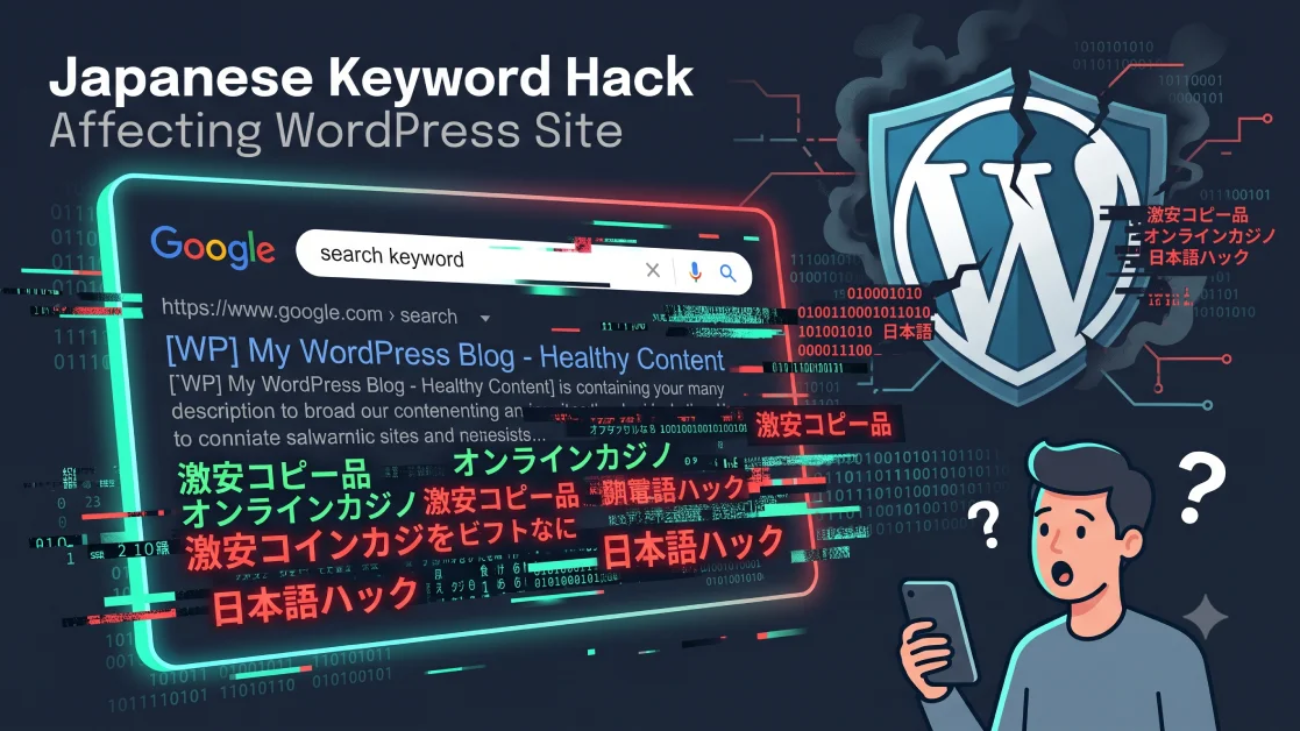
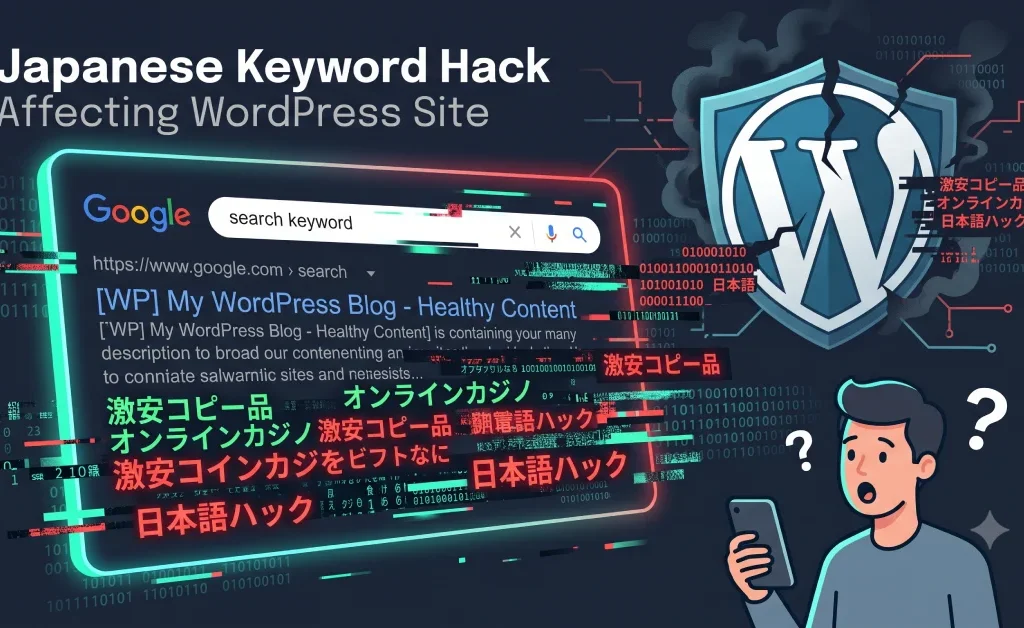
The Japanese keyword hack, also called Japanese SEO spam, is malware that generates thousands of Japanese-language pages on your website and gets them indexed by Google. The pages usually advertise counterfeit goods — fake luxury brands, watches, sneakers — and exist purely to capture search traffic. Your site becomes a doorway for someone else’s business.

The attacker isn’t selling anything from your domain. They’re borrowing your domain’s credibility to rank pages that would never rank on their own.

The spam pages typically sit in randomly named subdirectories — something like /wp-content/cache/, /news/2025/12/, or a folder of gibberish characters. You’d never find them by browsing your site because nothing links to them from your actual pages.

It’s not a rare or exotic infection either. In Sucuri’s threat data, Japanese SEO spam was the most detected and most frequently remediated malware type, found on just over 10% of all infected websites.


Why Is Google Showing Japanese Characters for My Website?

Because your site is serving Japanese spam pages to Googlebot while serving normal pages to you. The malware uses cloaking — it checks who’s requesting the page and responds differently depending on the answer.

This is the single most confusing part of the whole thing, so it’s worth being precise about what’s happening.

When Googlebot visits, the malware serves an auto-generated page full of Japanese text and affiliate links. Google indexes it. When you visit the same URL in your browser, the malware serves a 404, or nothing at all.

Both responses come from your server. Both are real. You’re just not the audience.

This is the same mechanism behind redirect malware that hides from logged-in admins — different payload, identical trick.

The part that traps people: there’s often no warning

Here’s what makes this infection so persistent. Most of the time, you will not see anything in the Security Issues section of Google Search Console.

Think about what that means in practice. You see Japanese pages in the search results, you check the official tool that’s supposed to tell you if you’ve been hacked, it says nothing, and you conclude the search results are wrong.

They’re not. Google indexing spam pages on your domain and Google flagging your domain as hacked are two separate processes. You can absolutely have the first without the second.

If you see Japanese pages under site:yourdomain.com, that’s your confirmation. You don’t need a Search Console warning to believe it.


How to Confirm You’re Infected

Five checks, in order of speed.

1. Run a site search. Search Google for site:yourdomain.com and page through the results. Japanese titles, counterfeit brand names, or URLs you don’t recognize are conclusive.

2. Check your indexed page count. In Search Console, open Indexing → Pages. If a 40-page site is showing 4,000 indexed URLs, those extra 3,960 came from somewhere.

3. Look at your sitemaps. In Search Console → Sitemaps, look for sitemap files you never submitted. Attackers generate their own sitemaps to get spam pages indexed faster. Common names look legitimate on purpose — sitemap1.xml, sitemap_index.xml, and similar.

4. Check Search Console property owners. Settings → Users and permissions. Attackers add themselves as verified owners of your property. This is how they monitor whether their spam is still ranking, and it’s how they keep a foothold after you think you’ve cleaned up.

Almost nobody checks this. Do it now, even if you’re not infected.

5. Check your WordPress users. Users → All Users, filtered to Administrator. Any account you didn’t create is a problem.


Where the Infection Came From

Same entry points as every other WordPress compromise: an outdated plugin, an abandoned plugin, a nulled theme, or weak credentials.

Page-builder add-ons have been a leading entry vector for Japanese SEO spam in recent years, along with form plugins and shortcode-injector plugins. If you’re running Elementor extensions or WPBakery add-ons from small developers, those are worth auditing first.

Worth understanding: the Japanese keyword hack, the pharma hack, casino spam, and generic SEO spam are all the same attack wearing different clothes. Same entry points, same cloaking, same cleanup. The only difference is which keywords the attacker wants to rank for.

Which means fixing the symptom without fixing the entry point gets you a different flavor of the same infection next month.


How to Remove the Japanese Keyword Hack

This is a two-part job, and skipping the second part is why people say it “came back.”

Part one is cleaning your site. Part two is cleaning Google’s index. Your site can be spotless while Google still shows thousands of spam URLs, because Google doesn’t know they’re gone until it crawls them again.

Part one: clean the site

  1. Take a full backup first, files and database, even infected. You need a rollback point.
  2. Remove unauthorized Search Console owners. Do this early — otherwise the attacker watches your entire cleanup.
  3. Delete the fake sitemaps from your root directory and any subfolders, then remove them in Search Console.
  4. Replace WordPress core with a fresh download from wordpress.org. Everything except wp-content and wp-config.php.
  5. Delete and reinstall every plugin and theme from official sources. Don’t clean in place. Don’t reinstall anything nulled.
  6. Hunt for backdoors. PHP files in wp-content/uploads/, unfamiliar files in mu-plugins, anything with a harmless-sounding name in a folder that shouldn’t contain code.
  7. Check .htaccess and wp-config.php for injected rules and code.
  8. Clean the database. Look at wp_options for oversized encoded entries, wp_posts for spam content, and wp_users for accounts you didn’t create.
  9. Delete the spam directories the pages were served from.
  10. Rotate every credential. WordPress admins, database, hosting panel, SFTP, and the salts in wp-config.php.
  11. Update everything and remove what you don’t use.

Part two: clean the index

This is the part most guides rush, and it’s where the lasting damage lives.

Return 410 for the spam URLs. Not 404 — 410. Both work, but 410 means “gone permanently” and Google acts on it faster than 404, which only means “not found right now.”

Most spam URLs follow patterns, so you can handle them in bulk with an .htaccess rule matching the directory or file extension rather than listing thousands of URLs individually.

Do not block the spam URLs in robots.txt. This is the most common mistake in Japanese keyword hack recovery, and it actively works against you.

Here’s the logic, because it’s counterintuitive: Google has to crawl a URL to see the 410 and drop it from the index. Block it in robots.txt and Google can’t crawl it, so it never learns the page is gone, so the spam URL sits in the index indefinitely. You’ve locked the door on the cleanup crew.

Do not redirect them to your homepage either. That tells Google the pages moved rather than died, and it hands your homepage a pile of spam signals.

Submit a clean sitemap. Replace the deleted spam sitemaps with your real one and resubmit it in Search Console.

Use the Removals tool for the worst offenders. Search Console → Removals hides URLs from search results within about a day. Understand the limit: this is temporary, roughly six months. It buys you breathing room while the 410s do the actual work. It is not a fix on its own.

Request indexing for your real pages. URL Inspection → Request indexing on your important pages nudges Google to recrawl your domain generally, which speeds everything up.

Request a review if you did get flagged. Search Console → Security Issues → Request Review. Explain what was wrong, what you did, and the outcome.

How Long Recovery Takes

Set expectations before you start refreshing search results every hour.

Stage Typical timeframe
Search Console review approved 7–14 days
Spam keyword impressions drop to zero 14–30 days
Indexed URL count returns to normal 30–90 days
Real keyword rankings recover 30–90 days
Sites with 10,000+ spam URLs indexed 3–6 months

Reviews take longer for Japanese SEO spam than for other infections, simply because of the sheer volume of URLs Google has to recrawl before it can confirm you’re clean.


“It Came Back” — What Actually Happened

Roughly half of Japanese SEO spam infections recur within 30 days of cleanup when prevention isn’t put in place.

That number isn’t bad luck. It’s one of three things:

The entry point was never closed. The vulnerable plugin or theme is still installed. The attacker walks back in the same door and rebuilds.

A backdoor survived. Cleanup removed the spam pages but missed a PHP file in the uploads folder or a rogue entry in mu-plugins. The site reinfects itself without any new intrusion.

Nothing came back at all. This one’s common and worth checking before you panic: the site is genuinely clean and you’re just seeing stale index entries. Google hasn’t recrawled yet, or some spam URLs are still returning 200 instead of 410.

You can test that last one directly. Run curl -I against a few suspect URLs and read the status code. If they’re returning 200, the 410 rule isn’t matching them, which is a configuration problem rather than a reinfection.

Diagnosing which of the three you’re facing matters, because the fixes are completely different — and treating an indexing lag like a reinfection means tearing apart a site that was already fine.


Doing It Yourself vs. Getting Help

  DIY Professional cleanup
Cost Free, plus your time $300–$3,000+
Time A full day minimum, often more Usually same-day
Hardest part Finding every backdoor and getting the 410 rules right Handled
Search Console work Often skipped entirely Standard
Reinfection risk High if the entry point isn’t found Lower
Best when Small site, clean backup, comfortable with .htaccess and phpMyAdmin Business site, thousands of spam URLs, or it’s come back before

The honest split: if you found the malicious code and the spam URLs follow a clean pattern you can match in .htaccess, this is doable in a day. If you’re staring at 8,000 indexed spam URLs in twelve different directory patterns and no idea how they got there, the index cleanup alone will take longer than the site cleanup.


Preventing the Next One

  • Audit every plugin against a vulnerability database like WPScan. Start with page builders, form plugins, and shortcode injectors.
  • Delete plugins you don’t use. Deactivated still means installed, and installed still means exploitable.
  • Never install nulled themes or plugins. Whoever removed the license check had full file access.
  • Turn on two-factor authentication everywhere — WordPress, hosting, and Search Console.
  • Check Search Console property owners quarterly. Takes thirty seconds and catches a foothold most people never look for.
  • Run a firewall with virtual patching so newly disclosed vulnerabilities are blocked before the developer ships a fix.
  • Search site:yourdomain.com once a month. It’s the earliest warning you’ll get, and it’s free.

Where WebFixOn Fits

We handle WordPress maintenance, security hardening, and malware recovery for businesses.

Japanese SEO spam is a two-front problem, and most cleanups only fight one of them. We find the entry point and every backdoor, then handle the Search Console side properly — correct status codes on the spam URLs, fake sitemaps removed, unauthorized owners revoked, clean sitemap resubmitted, review filed. Because a spotless site with 8,000 spam URLs still in Google’s index is not a finished job.

If it’s already been cleaned once and come back, that usually points to a specific, findable thing rather than bad luck.

What a Hacked WordPress Site Actually Costs (And the $0 Version of Prevention)

What a Hacked WordPress Site Actually Costs (And the $0 Version of Prevention)

Most people find out what a hacked website costs in the worst possible order.

First the cleanup quote. Then the hosting bill. Then, weeks later, the slow realization that the traffic hasn’t come back and probably won’t for a while.

So let’s do it in the right order instead — while your site is still fine and the numbers are just numbers.

Fair warning: the published figures on this vary enormously, and I’m going to show you why rather than picking the scariest one and running with it.

How Much Does It Cost to Fix a Hacked WordPress Site?

Professional cleanup for a typical WordPress site runs somewhere between $300 and $3,000, depending on how deep the infection goes. A single infection point on a small business site sits at the low end. A full compromise with backdoors in the database, theme files, plugins, and possibly the server configuration lands at the top — especially with emergency same-day service.

Some independent specialists offer flat-rate cleanups in the $195 range. Agency and incident-response firms billing hourly go much higher. In the UK, emergency malware removal typically runs £150 to £500.

So far, so manageable. A few hundred to a few thousand dollars is an unpleasant surprise, not a business-ending one.

Then you start seeing numbers like $14,500 as an average small business hack recovery, or $16,000 to $25,000 as a median cost of a cyber attack on US small businesses.

Which is it?

Both, sort of. And understanding the gap is the most useful thing in this article.

The small numbers are cleanup invoices. Someone removes the malware, patches the hole, files the review request. That’s a service with a price.

The big numbers are total incident costs — cleanup plus downtime, plus lost sales, plus SEO recovery, plus staff time, plus in some cases legal and notification costs. That’s not an invoice. It’s what the whole event ended up costing the business.

Treat the published averages with appropriate suspicion. They’re aggregates across wildly different businesses, and a hacked brochure site for a local plumber is not the same event as a hacked WooCommerce store processing 400 orders a day. But the structure of the cost is consistent, and that’s what’s worth understanding.

The Costs Nobody Quotes You

The cleanup fee is usually the smallest line item. Here’s what sits underneath it.

Lost revenue while you’re down

This is straightforward math and it’s the one most owners underestimate.

If your site earns $100 a day and you’re down a week, that’s $700 gone. If you’re a plumber whose site generates leads rather than direct sales, a single missed emergency call could be a $2,000 contract — because someone with a burst pipe clicks the next result in Google, not the one with a security warning on it.

Recovery time varies a lot. A straightforward hack with a clean backup can be sorted in hours. A basic hack usually takes 3–7 days minimum. Complex infections with backdoors across multiple files can take two to three weeks, especially if your backups are also infected.

The SEO damage, which lasts longest

This is the expensive one, and it’s invisible on any invoice.

When Google flags your site, the click-through rate on your search listings collapses — reported estimates put the drop around 95%. Not because you were removed from search, but because nobody clicks a result with a red warning under it.

Recovery isn’t instant. Published estimates range from 2–8 weeks after a correct cleanup at the optimistic end to 3–12 months for full ranking recovery at the pessimistic end. That spread depends heavily on how much spam got indexed and how fast you acted.

During that window, competitors are absorbing the traffic you built.

There’s a knock-on effect too. Other sites that link to you sometimes notice the warning and quietly remove the link to protect themselves. Those links don’t automatically come back when you’re clean.

Customers who don’t return

Around 40% of customers who experience significant site downtime never come back. That’s not people who complain — it’s people who quietly go elsewhere and stay there.

If your site is how customers find you, that number should get your attention more than the cleanup quote does.

Paying twice

Here’s a cost that only shows up in the fine print of the industry: a significant share of professional cleanup work comes from sites that were already cleaned once.

Cheap cleanups often stop at deleting what a scanner flagged. If one backdoor survives, the site reinfects, and you pay again — this time with a Google warning and lost rankings on top.

The things people forget entirely

  • Cyber liability coverage isn’t part of standard business insurance. Most small businesses don’t have it, and it usually requires you to demonstrate reasonable security practices before the incident.
  • If a hacked WooCommerce store exposed payment data, you’re in PCI compliance territory, which costs more than the cleanup.
  • Rebuilding from scratch instead of cleaning sounds appealing until you realize you lose the SEO history, backlinks, and domain authority you spent years accumulating.

The Cost Comparison, Side by Side

 PreventionRecovery
Direct cost$0–$100/month$300–$3,000+ cleanup
Time investmentAbout 2 hours setup, 30 min/month3 days to 3 weeks of disruption
Revenue impactNoneEvery day offline
SEO impactNone2 weeks to 12 months of recovery
Customer trustIntact~40% of affected visitors don’t return
Chance of repeatLowHigh if the backdoor is missed
When you payPredictably, in small amountsAll at once, at the worst possible time

Preventive security tooling generally runs $20–$100 per month. Compare that to the low end of a cleanup, and it pays for itself the first time it works.

But a good chunk of real prevention costs nothing at all, which is the actual point of this article.

The $0 Version of Prevention

None of what follows requires a purchase. It requires an afternoon and then about half an hour a month.

Free, do it today

Delete plugins and themes you don’t use. Not deactivate — delete. Deactivated plugin code still sits on your server and can still be exploited. Most sites are carrying three to six plugins nobody has opened in years.

Check the “last updated” date on everything you have installed. Over a year without an update is a warning. Over two is a replacement decision. WordPress tells you this in the plugins screen and almost nobody reads it.

Remove old WordPress installs. That test site in a subdirectory from 2021 is a live, unpatched entry point sitting in the same hosting account as your real site. On shared hosting, infections hop between sites in the same account.

Delete unused admin accounts. The developer you hired three years ago probably still has administrator access. Every active admin account is another door.

Turn on two-factor authentication. Free in most security plugins. Kills credential-stuffing attacks outright.

Disable file editing in the dashboard. Add define('DISALLOW_FILE_EDIT', true); to wp-config.php. If someone does get into your admin, this stops them editing theme files straight from the browser.

Fix file permissions. Files at 644, directories at 755, wp-config.php at 600. Never 777, no matter what a forum post from 2014 says.

Confirm auto-updates are actually running. Not just enabled — running. They fail silently for boring reasons like permission errors or a broken cron.

Never install nulled themes or plugins. Whoever removed the license check had full access to the code and no reason to be nice. Nulled software is a leading cause of infections, and it never receives real security updates.

Set up Google Search Console and turn on email alerts. Free, five minutes. It’s often how you find out about a problem first — and it’s how you’ll request a review later if you ever need to.

Actually restore a backup somewhere. Not check that backups exist. Restore one, into a staging environment or a subdirectory. An untested backup is a hypothesis. More than half of small business owners have no disaster recovery plan at all, and plenty of those who think they do have never verified it works.

Cheap, worth it

  • A firewall with virtual patching ($0–$25/month). Services like Wordfence and Patchstack can block exploitation of a newly disclosed vulnerability before the developer ships a fix. Attackers start scanning within hours of a disclosure; official patches often take a week or more.
  • Better hosting ($20–$50/month vs. $5). Budget shared hosting puts you on a server with thousands of other sites, any of which can become your problem. Quality hosting isolates your site and includes off-site backups.
  • Off-site backups. Backups stored on the same server as your site are one compromise away from being useless.
  • Uptime and file-change monitoring. Finding out from a monitor beats finding out from a customer.

Doing It Yourself vs. Hiring Someone

If it does happen, here’s the honest comparison.

 DIY cleanupProfessional cleanup
Cost$0–$200 for a premium plugin license$300–$3,000+
Time4 to 20+ hours if you’re learning as you goUsually same-day to 48 hours
What it covers wellObvious flagged filesEntry point, backdoors, database, credentials, review requests
Main riskMissing one backdoor and repeating the whole cycleCost
Best whenSimple site, clean backup, comfortable with FTP and phpMyAdminStore, business site, no clean backup, or it came back before

The dividing line is honest and simple. Scanners catch known signatures — they’re good at the obvious stuff. Sophisticated attackers use obfuscated code, hide backdoors in the database, or modify core files in ways automated scans don’t flag. Deleting flagged files is maybe a third of a real cleanup. The rest is finding the entry point, digging backdoors out of the places scanners skip, rotating every credential, and filing the review requests that clear the Google warning.

If you’re comparing quotes, ask what happens after the deleting. Cheap options usually stop there.


The Framing That Actually Helps

Most security advice fails because it’s abstract. “Keep your plugins updated” doesn’t compete with the eleven other things on your list this morning.

So try it as a number instead.

Take your monthly revenue and divide by 30. That’s what a day offline costs you, roughly, before you count SEO damage or customers who don’t come back. Multiply by seven for a realistic minimum for a moderate infection.

Now compare that against an hour of deleting unused plugins.

That’s the whole argument. You’ll pay for WordPress security either way — the only question is whether you pay a small predictable amount ahead of time or a large unpredictable amount at the worst possible moment, while your site is down and your competitors are absorbing your traffic.

Where WebFixOn Fits

We handle WordPress maintenance, security hardening, and malware recovery for businesses in the US, UK, Canada, and Australia.

If your site is currently fine, ongoing maintenance is the version of this that stays cheap: updates applied and verified, abandoned plugins caught during routine checks, backups tested rather than assumed, and newly disclosed vulnerabilities handled in hours instead of whenever someone notices.

If your site has already been hit, we find the entry point rather than just the visible symptom — because a cleanup that leaves one backdoor behind means paying for the whole thing twice.

The cheapest cleanup is the one that never happens. The second cheapest is the one where someone had a recent, tested backup.

Your Site Redirects Visitors But Looks Fine to You — Here's Why

Your Site Redirects Visitors But Looks Fine to You — Here’s Why

A customer emails you. They say your site sent them to some sketchy page about a browser update. You open your site. It loads fine. You click around. Everything works.

So you assume they made a mistake, or their phone had a virus, or they clicked an ad somewhere else.

Then a second person says the same thing. Then your traffic drops.

Here is the uncomfortable part: they are almost certainly right, and the reason you cannot see it is that the malware was built specifically so you cannot see it.

What Is a WordPress Redirect Hack?

A WordPress redirect hack is malicious code injected into your site’s files or database that sends visitors to pages the attacker controls. Those pages are usually spam, gambling sites, fake pharmacies, crypto scams, or phishing forms. The key feature is that the redirect is conditional — it checks who the visitor is before deciding whether to fire.

That last sentence is the whole story. Older malware redirected everyone. Modern malware is picky.

It looks at whether you are logged in. It looks at what device you are on. It looks at where you came from. Only when the visitor matches the right profile does it send them away. Everyone else gets a perfectly normal website.

Why You Can't See It

You cannot see the redirect because the malware checks whether you are logged in and skips you on purpose. It also often checks your device type and where you arrived from. Site owners visit their own site while logged in, on desktop, by typing the address directly — which is exactly the profile the malware ignores.

This is called cloaking. It has one goal: keep the site owner calm while the site quietly earns money for someone else.

Here are the filters that show up most often.

What the malware checksWhat it doesWhy attackers use it
Are you logged in?Skips logged-in users entirelyThe owner sees a clean site and never investigates
Where did you come from?Fires only when the visitor arrives from Google, Bing, or social mediaSearch traffic is the most valuable to monetize
What device is this?Fires only on mobileMobile users have fewer ad blockers and are easier to trick
Have you been here before?Fires only on the first visitRepeat visitors and returning owners see nothing
What is your user agent?Skips known scanner and search engine botsAvoids being flagged by security tools

Some campaigns get very specific. Fake browser-update lures have been documented targeting visitors in the US, UK, and Australia in particular — which matters if that is where your customers are.

There is also a technical reason remote scanners miss these. If a redirect is built into your .htaccess file with conditions attached, an external scanner’s request will not match those conditions, so the scanner sees a clean page and reports no problem. A clean scan result is not proof of a clean site.

How to Actually Test Your Site

Stop testing while logged in. That is the single change that reveals most of these.

Work through this list in order:

  1. Open a private or incognito window. Make sure you are fully logged out, not just in a different tab.
  2. Search for your site on Google and click the result rather than typing your address. This triggers referrer-based redirects that direct visits never will.
  3. Test on a real phone, on mobile data rather than your home Wi-Fi. Many redirects are mobile-only.
  4. Ask someone in another country to check if your audience is spread across the US, UK, Canada, or Australia. Some campaigns are geo-targeted.
  5. Check Google Search Console. Look at the Security Issues report and Manual Actions. Also check whether pages you never wrote are showing up in your indexed pages.
  6. Search Google for site:yourdomain.com. If you see listings for pills, casinos, or products you do not sell, that is SEO spam sitting in your database.
  7. If you are comfortable in a terminal, use curl to request your homepage while pretending to be a mobile browser arriving from Google. Changing the user agent and referrer headers lets you reproduce the exact conditions that trigger the redirect.

If any of these show a redirect, your site is infected. Not “maybe.” It is.

Where the Malware Usually Gets In

Almost always through a plugin or theme. Not through WordPress itself.

The numbers on this are lopsided. According to Patchstack’s State of WordPress Security in 2026, plugins accounted for 91% of the 11,334 new vulnerabilities reported across the WordPress ecosystem in 2025. Themes made up nearly all of the rest. WordPress core itself had six low-priority issues in the entire year.

So the software people worry about updating is the safest part of the stack. The parts they forget about are the problem.

Outdated plugins

Roughly 250 new plugin vulnerabilities are disclosed every week in 2026. About 43% of them can be exploited without any login at all, and around 23% are still unpatched a month after being made public.

Public disclosure is a starting gun that fires for both sides. Security researchers report that attackers begin scanning for vulnerable installs within about four hours of a disclosure, while official patches often take a week or two to arrive. That gap is where most sites get hit.

Abandoned plugins

An estimated 35% of plugins in the WordPress.org repository have not been updated in over 12 months. Plenty of those still have hundreds of thousands of active installs.

An abandoned plugin does not stop working. It just stops getting fixed. Any vulnerability discovered after the developer walked away stays open permanently.

WordPress shows you a warning — “Not tested with the latest 3 major releases of WordPress” — and almost nobody acts on it.

There is a nastier version of this too. Attackers have been known to buy abandoned plugin projects outright and push a backdoored update to everyone still using it. Your site accepts it as a normal update, because technically it is one.

Not all plugin categories carry the same risk. A 217-plugin audit published in 2026 found the four highest-risk categories were page builders, WooCommerce extensions, membership and LMS plugins, and marketing or popup plugins — with 41% of marketing and popup plugins going more than a year without an update. The same audit found caching and security plugins scored among the lowest risk, which is the opposite of what most people assume.

Plugin categoryRisk levelWhy
Page buildersHighHuge codebase, deep site access, frequent CVEs
WooCommerce extensionsHighHandle payments and customer data, often small developers
Membership / LMSHighComplex permission logic, many edge cases
Marketing / popupHigh41% abandoned, low maintenance incentive
CachingLowSmall surface area, actively maintained
SecurityLowActively maintained, scrutinized closely

Nulled themes and plugins

If you downloaded a premium theme for free from a site that was not the developer’s, assume it is compromised.

Nulled software is a cracked copy with the license check removed. Whoever removed the license check had full access to the code and no reason to be nice about it. Backdoors, obfuscated loaders, credential stealers, and hidden spam links are all common. The code is usually encoded so it does not look obviously wrong when you open the file.

And because nulled software never receives real updates, any vulnerability in it stays open forever. You get reinfected, clean it, and get reinfected again, because the door was never a hole in your security. It was a feature.

Where the Bad Code Actually Hides

Redirect malware rarely sits in one place. It usually installs a visible part and a hidden part, so that removing the obvious piece does nothing.

The common hiding spots:

  • Your active theme’s header.php, footer.php, or functions.php — often in the first or last twenty lines, where it blends in
  • The wp_options database table — especially the siteurl and home values, which should match your real domain exactly. Payloads also get stored here as long encoded blobs.
  • The .htaccess file — look for RewriteRule or Redirect lines you did not add
  • wp-config.php — a healthy one is roughly 3 to 5 KB. If yours is dramatically larger, something is in there.
  • The mu-plugins folder — must-use plugins load automatically and never appear in your normal plugins list. This location has become much more common.
  • wp-content/uploads/ — should only contain images, PDFs, and media. PHP files here with harmless-sounding names like social-icons.php or thumb-handler.php are backdoors.
  • The wp_users table — hidden administrator accounts added for later access
  • Core files like wp-blog-header.php or files inside wp-includes, which should be byte-identical to a fresh WordPress download

If you are comfortable with a terminal, searching your files for eval, base64_decode, gzinflate, and str_rot13 will surface most obfuscated payloads quickly. These functions have legitimate uses, so a match is a lead, not a verdict.

Why Deleting the Bad File Doesn't Work

This is the part that catches almost everyone.

You find the injected JavaScript in your theme’s header.php. You delete it. The site looks clean. Two hours later, it is back.

Here is why. The visible JavaScript was not the malware. It was the output of the malware. The actual loader is sitting encoded in your wp_options table with a scheduled WordPress cron job that rewrites the theme file on a timer. You removed the symptom and left the engine running.

Some newer campaigns go further. One documented variant stores its payload as an encrypted blob in the database and writes a temporary PHP file into the uploads folder only at the moment a request comes in, then deletes it immediately. Scanners that run once an hour almost never catch it in the act.

This is why partial cleanup is the most common failure mode in redirect infections — and why “I deleted the file and it came back” is one of the most common things people say when they finally ask for help.

How to Clean It Properly

If you are going to do this yourself, do it in this order. Skipping steps is what causes reinfection.

  1. Take a full backup first — files and database, even though it is infected. You need something to compare against and roll back to if you break the site.
  2. Put the site in maintenance mode. Stop serving redirects to real customers while you work.
  3. Replace WordPress core. Download a fresh copy from wordpress.org and replace everything except wp-content and wp-config.php.
  4. Delete and reinstall every plugin and theme from official sources. Do not clean them in place. Do not reinstall anything nulled.
  5. Check the database. Verify siteurl and home, remove unknown wp_options entries and scheduled tasks, and check wp_users for administrator accounts you did not create.
  6. Reset .htaccess to the default WordPress version.
  7. Scan wp-content/uploads/ for PHP files and remove them.
  8. Rotate every credential — database password, the security salts in wp-config.php, all admin passwords, hosting panel, SFTP.
  9. Fix file permissions. Files at 644, directories at 755. Never 777.
  10. Disable PHP execution in the uploads folder so a dropped file cannot run.
  11. Retest properly using the incognito, from-Google, and mobile checks above. Then request a review in Google Search Console if you were flagged.

If you get partway through this and lose confidence, stop. A half-finished cleanup that leaves one backdoor behind is worse than not starting, because the reinfection will look like a new attack and you will chase the wrong thing.

Doing It Yourself vs. Getting It Handled

Both are reasonable. They fit different situations.

 Cleaning it yourselfProfessional cleanup
CostFree, plus your timePaid service
TimeSeveral hours to several daysUsually same-day
Database inspectionOften skipped, which is where reinfection startsStandard part of the process
Finding every backdoorDifficult — they are designed to be missedSystematic search across files, database, and cron
Best whenSimple site, recent clean backup, comfortable with SFTP and phpMyAdminStore or business site, no clean backup, or it has come back before

If your site takes payments or stores customer information, the calculation changes. A redirect hack on a WooCommerce store is not just an annoyance — visitors are being sent to phishing pages from a domain that has your name on it, which becomes a customer trust problem and, depending on your market, a legal one.


Stopping the Next One

Cleaning the site fixes today. These habits fix next quarter.

  • Remove plugins you do not use. Deactivated is not removed. Deactivated plugin code still sits on your server and can still be reachable.
  • Check the “last updated” date before installing anything. More than a year is a warning sign. More than two years is a no.
  • Audit what you already have every few months. Anything abandoned needs replacing, not tolerating.
  • Never install nulled software. The savings are not real.
  • Run a firewall that virtual-patches. Services like Patchstack and Wordfence can block exploitation of a newly disclosed vulnerability before the developer ships a fix, which closes the four-hour-versus-two-week gap.
  • Set up file integrity monitoring so you find out when a file changes instead of when a customer complains.
  • Test your backups by actually restoring one. An untested backup is a guess.
  • Log out and check your own site from a phone, from a Google search, once a month. It takes ninety seconds.

Where WebFixOn Fits

We do WordPress maintenance, security hardening, and malware recovery for businesses in the US, UK, Canada, and Australia.

If your site is redirecting, we will find every part of it — files, database, cron jobs, hidden admin accounts, and the plugin or theme that let it in — rather than removing the piece you can see and hoping. If it has already been cleaned once and come back, that is usually a sign the loader was left behind, and that is a specific thing to go looking for.

For sites that are currently fine, ongoing maintenance means outdated and abandoned plugins get caught during a routine check rather than during an incident.

The redirect is not the problem. It is the receipt.

Wp2shell Explained The WordPress Attack Hitting Millions of Sites in 2026

Wp2shell Explained: The WordPress Attack Hitting Millions of Sites in 2026 (And How to Check If You’re Exposed)

The Short Version, Because Some of You Are Panicking

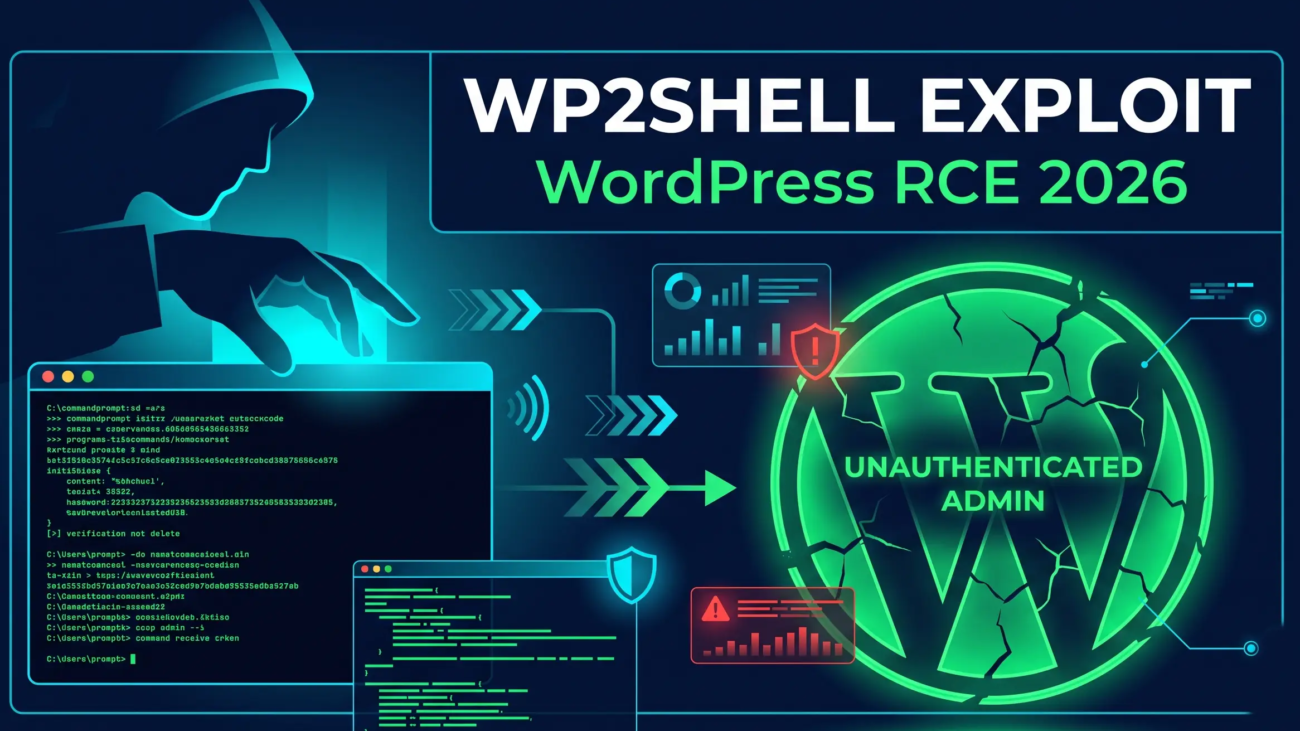
On July 17, 2026, the WordPress security team shipped an emergency patch for a flaw that lets a complete stranger on the internet run code on your website. No password. No plugin. No clicking a shady link. Just a request sent to your site.

It’s called wp2shell. If your site is running WordPress 6.9.0 through 6.9.4, or 7.0.0 through 7.0.1, you were exposed. Go check your version right now — Dashboard, then Updates. You need to be on 6.9.5, 7.0.2, or 6.8.6 at minimum.

Back? Good. Now let’s talk about what actually happened, and the part most articles skip: patching does not tell you whether you were already hit.

What Is wp2shell?

wp2shell is a critical pre-authentication remote code execution vulnerability in WordPress core, disclosed on July 17, 2026. It chains two separate bugs — CVE-2026-63030 and CVE-2026-60137 — to let an unauthenticated attacker take full control of a WordPress site. It works on a default installation with zero plugins installed.

That last sentence is the part that makes this different from every other WordPress security scare you’ve read about.

Most WordPress hacks trace back to something you did or didn’t do. An outdated plugin. A weak admin password. A theme you bought from a sketchy marketplace in 2019 and never updated. There’s usually a lesson, and usually it stings a little.

wp2shell has no lesson. The bug lived in WordPress core itself. A bare install — no plugins, no custom code, nothing but WordPress out of the box — was exploitable. If you were running an affected version, you were vulnerable, full stop.

The flaw was found by researcher Adam Kues at Searchlight Cyber, who used AI tooling during the discovery process. Make of that what you will. The robots found the hole, and other robots immediately started climbing through it.

How the Attack Actually Works (In Plain English)

Two bugs, chained together. Neither one is catastrophic alone. Together they hand over the keys.

Bug one: CVE-2026-63030, the route confusion.

WordPress 6.9 added a REST API batch endpoint at /wp-json/batch/v1. The idea is reasonable — instead of sending five separate API requests, an app can bundle them into one call. Faster, less overhead, everyone wins.

The problem is that the batch handler validates the bundled requests in one pass and executes them in another. When those two passes get out of sync, a request can end up being handled by the wrong route entirely — one where the normal permission checks don’t apply the way they should.

Think of it like a nightclub where the bouncer checks everyone’s ID at the door, then a separate staff member walks a different group inside. If the two lists don’t match, somebody who was never checked ends up standing at the bar.

Bug two: CVE-2026-60137, the SQL injection.

There’s an SQL injection flaw in the author__not_in parameter of WP_Query. On its own, it requires an authenticated user, which limits the damage considerably.

But chain it behind bug one, and suddenly it’s reachable by anyone. An attacker can pull data straight out of your MySQL database—including administrator password hashes, which can then be cracked offline at leisure.

The result: an anonymous HTTP request turns into full code execution on your server. Attackers have been using it to drop PHP webshells, upload fake plugins that expose a remote command endpoint, and create backdoor administrator accounts.

One more technical detail worth knowing, because it explains why some sites got hit and neighboring ones didn’t: Cloudflare reported that the vulnerable code path is reachable when a persistent object cache is not in use. Sites running Redis or Memcached object caching may have been shielded by accident. Congratulations on your performance optimization, it apparently doubled as a security control.

Which WordPress Versions Are Affected?

Here’s the version breakdown. Find your row, take the action in the third column.

Your WordPress versionExposureWhat you need to do
7.0.0 – 7.0.1Full RCE chainUpdate to 7.0.2 or later immediately
6.9.0 – 6.9.4Full RCE chainUpdate to 6.9.5 or later immediately
6.8.0 – 6.8.5SQL injection component onlyUpdate to 6.8.6 or later
6.9.5 / 7.0.2 / 6.8.6 or newerPatchedVerify the update actually applied, then check for compromise
Older than 6.8Not exposed to this chainYou have bigger problems. Please update.

WordPress enabled forced automatic updates given the severity, which was the right call. But — and security teams have been repeating this for good reason — do not assume the forced update landed. Auto-updates fail for plenty of boring reasons: file permission issues, disabled update constants in wp-config.php, managed hosts that override core update behavior, disk space, a broken cron.

Check every site you own. Individually. Yes, all of them.

The Timeline: Why This One Moved So Fast

The speed here is the story. Most vulnerabilities give you a grace period between disclosure and exploitation. This one gave almost none.

DateWhat happened
July 17, 2026WordPress ships emergency releases 6.8.6, 6.9.5, and 7.0.2
July 17–18Public proof-of-concept exploit code appears on GitHub within hours
July 18–20Multiple security firms confirm in-the-wild exploitation
July 21Both CVEs added to CISA’s Known Exploited Vulnerabilities catalog
OngoingActivity escalates from targeted probing to internet-wide scanning

Security researchers tracked exploitation beginning with credential exfiltration using the public exploit code, with full remote code execution following once more technical detail was published. Over a hundred backdoor administrator accounts were reportedly created across compromised sites.

A live patch-rate dashboard tracking a sample of roughly 124,000 sites showed around 81.6% patched. Which sounds encouraging until you do the math on the remaining 18%.

How to Check If Your Site Was Compromised

Patching closes the door. It does not remove anyone who already walked through it. If your site was on a vulnerable version and reachable from the internet during that exposure window, you need to check for compromise — not just confirm the update.

Here’s what to look for.

1. Unexpected administrator accounts

Go to Users → All Users and filter by Administrator. Look at the registration dates. Accounts created between July 17 and whenever you patched deserve real scrutiny.

Proof-of-concept exploit code used a w2s_ prefix on the accounts it created, so that’s an easy thing to search for. Don’t rely on it though — that prefix is a default that any competent attacker changes in about four seconds.

Also worth knowing: some attackers create an admin account, use it, then delete it. That leaves traces — orphaned user metadata in the database and gaps in the user ID sequence. If your user IDs jump from 4 to 9 and you only ever created four users, something happened.

2. Unknown plugins and stray PHP files

Look in wp-content/plugins/ for directories you don’t recognize. Attackers have been uploading malicious plugins that expose a REST endpoint for remote command execution, sometimes disguised as legitimate tools.

Then look wider. PHP files at randomized paths inside wp-content/ subdirectories — anything not belonging to an installed plugin or theme — are a red flag. Webshells have been found outside the plugin directory too, including in cache folders, which is exactly the kind of place nobody thinks to look.

3. Server access logs

This is the highest-fidelity check, and the one most site owners skip because logs are intimidating. They shouldn’t be.

Search your access logs for requests to /wp-json/batch/v1 or ?rest_route=/batch/v1. HTTP 207 (Multi-Status) responses from the batch endpoint are a strong indicator of exploitation attempts, particularly alongside unusual triple-slash path patterns.

Stock proof-of-concept code also sent user-agent strings containing wp2shell or rezwp2shell. Easy to search for, easy for attackers to change — treat a hit as confirmation, but treat a miss as nothing.

Also check for author__not_in or author_exclude parameters carrying non-integer values with SQL keywords in them. WordPress normalizes a few different spellings of that parameter, so search variations.

4. The obvious symptoms

Redirects to sites you don’t recognize. Spam content in your search results that you never wrote. Google Search Console security warnings. Your host suspending the account. Injected code in your pages. Sudden unexplained slowdowns.

If you’re seeing these, you’re past the checking stage.

Free tools that help

Searchlight Cyber — the team that found the flaw — runs a free external checker at wp2shell.com that probes a live site. There’s also a Compromise Scanner plugin in the WordPress.org repository built specifically to detect the artifacts this chain leaves behind.

Use both. Understand their limits. An external checker reads what your site tells the outside world, which version strings can hide or spoof. And a clean scan means no known artifacts were found — a careful attacker cleans up after themselves. Reassuring, not conclusive.

If You Find Evidence of Compromise, Do Not Just Delete the File

This is the single most common mistake we see people make, and it’s an expensive one.

Someone finds a suspicious PHP file, deletes it, feels relieved, and moves on. Two weeks later the site is reinfected and they can’t work out how.

Here’s why: successful exploitation of wp2shell means an attacker had code execution on your server. Not on your WordPress install — on your server. They may have dropped multiple backdoors, modified core files, planted a scheduled task, or stolen your database credentials and salts straight out of wp-config.php.

Deleting one webshell removes one symptom.

The actual recovery sequence:

  1. Take the site offline. Maintenance mode or a holding page. Stop the bleeding and stop serving malware to visitors.
  2. Assume full compromise. Don’t negotiate with yourself about how bad it probably is.
  3. Rotate every secret. Database password, all the authentication salts in wp-config.php, API keys, every admin password, hosting panel credentials, SFTP keys. All of them.
  4. Restore from a known-clean backup taken before the exposure window opened.
  5. Then patch, before the site goes back online. Restoring a clean backup onto an unpatched install just resets the clock.
  6. Verify after. Re-run the compromise checks on the restored site.

If you don’t have a clean pre-incident backup, or you’re not confident about any step above, that’s the point to bring in help rather than experiment. Bad malware cleanup is worse than none — it hides the problem without solving it.


Manual Cleanup vs. Professional Recovery

Both paths are legitimate. They just suit different situations.

 Doing it yourselfProfessional cleanup
CostFree, plus your timePaid service
Time to resolutionHours to days, depending on experienceTypically same-day
Server-level checkUsually limited to what you can see in the file managerFull filesystem, logs, cron, and database review
Risk of missing a backdoorModerate to high — they’re designed to be hiddenLower, with systematic hunting
Best forSimple sites, recent clean backup, comfortable with SFTP and logsBusiness sites, eCommerce, no clean backup, repeat infections

If your site takes payments, stores customer data, or generates revenue, the math usually favors getting it handled properly. A WooCommerce store with a webshell on it isn’t a technical inconvenience, it’s a data breach with legal implications in most of the markets we work in.

The Bigger Pattern: This Is the Third One This Year

wp2shell didn’t happen in isolation. It’s the third significant WordPress security event of 2026.

In April, a supply-chain attack led to more than 25 plugins being pulled from the WordPress.org repository in a single day, after attackers gained the ability to push malicious updates to plugins with existing user bases. In June, three separate supply-chain incidents landed in one week — including a CDN key compromise that let attackers tamper with JavaScript served to over a million sites without touching the installed plugin code at all.

And now a core vulnerability that needed no plugins whatsoever.

There’s a pattern here, and it’s uncomfortable: the advice everyone has been giving for a decade — keep everything updated — is now the floor rather than the ceiling. In several of these incidents, the update was the attack. Sites that updated promptly got compromised because they updated promptly.

That doesn’t mean stop updating. It means updating alone stopped being a security strategy somewhere around 2025. What actually holds up now is layered: a firewall that can block a malicious request before it reaches PHP, file integrity monitoring that tells you when something changes on disk, backups you’ve actually tested restoring, a minimal plugin footprint, and someone who notices anomalies within hours instead of when a customer emails about a redirect.

Most site owners don’t have that. That’s not a character flaw — it’s a full-time job, and you probably already have one of those.

What to Do This Week

Short list. Do these in order.

  1. Check the core version on every WordPress site you manage. Dashboard → Updates. Confirm 6.9.5, 7.0.2, or 6.8.6 minimum.
  2. Don’t trust the auto-update. Verify visually, per site.
  3. Review your administrator accounts and their registration dates.
  4. Scan wp-content/ for unfamiliar plugin directories and stray PHP files.
  5. Pull your access logs and search for batch endpoint requests during the exposure window.
  6. If you can’t patch immediately, block /wp-json/batch/v1 and ?rest_route=/batch/v1 at your firewall as a temporary measure. This is a stopgap, not a fix.
  7. Test that your backups actually restore. A backup you’ve never restored is a hypothesis, not a safety net.

If step 3, 4, or 5 turns up something you can’t explain, stop and get the site properly assessed before you start deleting things.

Where WebFixOn Fits

We handle WordPress maintenance, security hardening, and malware recovery for businesses across the US, UK, Canada, and Australia. If you’ve checked your site and found something you can’t explain — or you’d rather have someone check properly than hope for the best — that’s the work we do.

For an active compromise, we’ll take the site offline, hunt for every backdoor rather than the obvious one, rotate your credentials, restore clean, patch, and verify before it goes back up. For sites that came through this fine, ongoing maintenance means the next core CVE gets patched and verified within hours instead of whenever someone notices.

wp2shell is patched. The next one isn’t announced yet.

A 2026 Emergency Manual to WordPress Malware Removal

My Site Was Hacked: A 2026 Emergency Manual to Malware Removal

My Site Was Hacked: A 2026 Emergency Manual to WordPress Malware Removal

There is a specific kind of sinking feeling that only a website owner understands. You wake up, grab your coffee, and check your site—only to be greeted by a bright red Google warning screen that says, “The site ahead contains harmful programs.” Or worse, your homepage has been replaced by a “Hacked By” screen or redirected to a sketchy pharmaceutical site.

In 2026, WordPress security has become a sophisticated arms race. Hackers aren’t just kids in basements anymore; they are AI-driven botnets looking for a single outdated plugin or a weak password to inject malicious redirects, SEO spam, or hidden “backdoors.”

If your site is currently compromised, do not panic. Panic leads to deleting the wrong files, which can turn a hacked site into a permanently broken one. Follow this manual to perform a professional-grade malware cleanup and regain control of your digital asset.

Phase 1: Immediate Triage and Containment

Before you start deleting code, you must contain the infection. If you don’t, the hacker’s automated scripts might detect your changes and re-infect the site in real-time.

1.1 Maintenance Mode & Access Lockdown

First, prevent your visitors from being infected. If you can still access your dashboard, install a maintenance mode plugin. If not, you can add a simple index.html file to your root directory to override the WordPress index.

Next, change every single password associated with the site:

  • SFTP/FTP Accounts: This is often how hackers upload malicious files.
  • Hosting Control Panel (cPanel/Plesk): Essential to ensure the “house” itself is secure.
  • WordPress Admin Users: Check the “Users” list for any accounts you didn’t create. Delete them immediately.

1.2 The Site Backup (Even the Infected One)

It sounds counterintuitive, but you must take a full backup of the hacked site. If your cleanup goes wrong and you accidentally delete a critical database table, you’ll want a way to revert. Use your hosting backup tool or SFTP to download your public_html folder and export your SQL database.

Phase 2: Identifying the Infection (The Audit)

You cannot fix what you cannot see. Malware in 2026 is often “fileless” or hidden inside legitimate WordPress core files using Base64 encoding.

2.1 Scanning for the “Red Flags”

Use a combination of remote and server-side scanning. Remote scanners like Sucuri SiteCheck can see what the user sees (redirects, blacklisting). However, you need a deep scan for the server-side files.

  • Check the .htaccess file: Hackers love to hide redirects here. Look for any code that doesn’t look like standard WordPress rewrite rules.
  • The wp-config.php check: This file contains your database credentials. If a hacker has this, they have everything. Look for any code above the <?php tag—a common injection point.

2.2 Searching for Suspicious Strings

If you have SSH access, you can run a command to find common malicious patterns:

grep -rnw . -e ‘base64_decode’ –exclude-dir=node_modules

While base64_decode is used by some legitimate plugins, it is the primary tool for obfuscating malware. If you see it in a file where it doesn’t belong (like index.php), you’ve found a lead.

Phase 3: The Manual Clean (The “Nuke and Pave” Method)

A “plugin-only” scan often misses deep-rooted shells. The professional way to clean a site—and the way we do it at Webfixon—is the “Core Replacement” method.

3.1 Replacing Core Files

The wp-admin and wp-includes folders should never contain custom code.

  1. Download a fresh copy of WordPress from WordPress.org.
  2. Delete your existing wp-admin and wp-includes folders via SFTP.
  3. Upload the fresh versions.

This instantly removes any malware hidden in the core of your WordPress installation.

3.2 Cleaning the wp-content Folder (The Danger Zone)

This is where 99% of infections live because it’s the only folder that must remain unique to your site.

  • Plugins: Do not try to “clean” a plugin. Make a list of your plugins, delete the entire /plugins/ folder, and reinstall them from the official repository.
  • Themes: If you’re using a premium theme, download a fresh copy from the developer. If you have a child theme with custom code, you must manually inspect every .php file for suspicious strings.
  • Uploads: Hackers often hide .php files inside your /uploads/ year/month folders. Use your file manager to search for any file ending in .php inside the uploads directory. There should be zero PHP files in your uploads folder.

3.3 The Database Scrub

Sometimes the malware isn’t in a file; it’s in your database. Check the wp_options table, specifically the siteurl and home fields, to ensure they haven’t been changed to a malicious domain. Also, look at the wp_posts table for any injected <script> tags or hidden <iframe> elements.

Phase 4: Hardening the Perimeter

Cleaning the site is only half the battle. If you don’t close the door they walked through, they will be back in 24 hours.

4.1 Resetting Security Salts

Your wp-config.php file contains “Security Salts.” These are random strings that encrypt your cookies. If a hacker has stolen your session cookie, they can log in even if you changed your password.

Go to the WordPress Salt Generator, copy the new keys, and replace the old ones in your wp-config.php. This will instantly log out every user globally.

4.2 File Permissions

Ensure your file permissions are set correctly:

  • Folders: 755
  • Files: 644
  • wp-config.php: 440 or 400 (to prevent unauthorized reading).

4.3 Implementing a Firewall (WAF)

In 2026, a signature-based firewall isn’t enough. You need a Web Application Firewall (WAF) that uses behavior analysis. Tools like Cloudflare or Wordfence can block IPs that attempt “Brute Force” logins or “Directory Traversal” attacks before they even touch your server.

Phase 5: Why “DIY” Malware Removal is Risky

While this manual provides the steps, WordPress malware removal is a high-stakes task. One small mistake—leaving behind a single line of hidden code (a “backdoor”)—means the hacker can regain entry at any time.

Furthermore, a hacked site often suffers from SEO Hemorrhaging. If Google blacklists your site, your rankings will tank. Even after cleaning the site, you must manually request a review via Google Search Console to prove the site is safe. If you haven’t cleaned it 100%, Google may reject your request, making it even harder to get back into their good graces.

The Webfixon Advantage

At Webfixon, we don’t just “scan” your site. We perform a surgical cleanup:

  1. Deep Forensic Audit: We find the entry point so it never happens again.
  2. Professional Core Replacement: We ensure every file on your server is 100% authentic.
  3. Blacklist Removal: We handle the communication with Google and Norton to get your “Deceptive Site” warning removed fast.
  4. 24/7 Monitoring: Our maintenance plans include real-time threat detection.

Conclusion: The Roadmap to Recovery

A hack is a wake-up call. It usually means your maintenance routine has lapsed. By following the “Nuke and Pave” method—replacing core files and fresh-installing plugins—you can recover your site’s integrity.

Quick Checklist for Today:

  1. Lock down all passwords.
  2. Replace wp-admin and wp-includes.
  3. Delete and reinstall all plugins.
  4. Clear your uploads folder of .php files.
  5. Reset your Security Salts.

Still seeing redirects? Or is the “Red Screen of Death” still haunting your homepage?

Don’t wait until your SEO is permanently damaged. Contact the experts at Webfixon for an emergency quick fix. We’ll have your site clean, secure, and back online in hours, not days.

FAQ: WordPress Malware Removal

Q: Will deleting a hacked plugin remove the malware?

A: Usually, yes, but hackers often leave “backdoors” in other folders so they can reinstall the malware even after the plugin is gone. You must check the entire file structure.

Q: How long does it take for Google to remove the “Deceptive Site” warning?

A: Once you submit a request through Search Console, it typically takes 24 to 72 hours for Google to verify and clear the warning.

Q: Can I just use a free plugin to fix everything?

A: Free plugins are great for detection, but they often struggle with “auto-cleaning” complex injections without breaking your site’s layout. Manual verification is always recommended.